
Wondering how to pay for cigarettes online in Canada? Native Nicotine currently accepts Interac e-Transfer. Place your order first, review the payment instructions shown for that order, open your bank or credit union’s mobile app or online banking, send the exact total using the current recipient details, and keep the confirmation number until the order is complete.
The payment itself happens inside your financial institution’s system. Native Nicotine does not need your online-banking password, card PIN, or remote access to your device. After the transfer is received and matched to the correct order, the order moves into processing. Tracking is emailed after shipment.
This complete guide explains the process step by step, including what information to copy, how Autodeposit and security questions work, what can delay payment matching, how to avoid scams, what happens after payment, and when to contact your bank or Native Nicotine support.
Quick answer
Complete checkout first. Then use the current Interac e-Transfer instructions connected to your order, send the exact total through your own bank, include the requested order reference, and save the transfer confirmation. Never send your banking password or PIN.
Interac e-Transfer is integrated into the online and mobile banking services of participating Canadian financial institutions. The sender initiates the payment from a bank account rather than entering a card number into the retailer’s checkout page.
According to Interac, the service uses established banking procedures and secure payment networks. Money does not travel through an email or text message; those channels are used only for notifications and deposit instructions. Transfers are encrypted and monitored through the financial system.
For a Native Nicotine order, the practical advantages are:
Interac e-Transfer is the current payment method shown for Native Nicotine orders. Payment methods can change, so always follow the live checkout rather than relying on a saved screenshot or an older article.
For official service information, see Interac e-Transfer and Interac payment-security guidance.
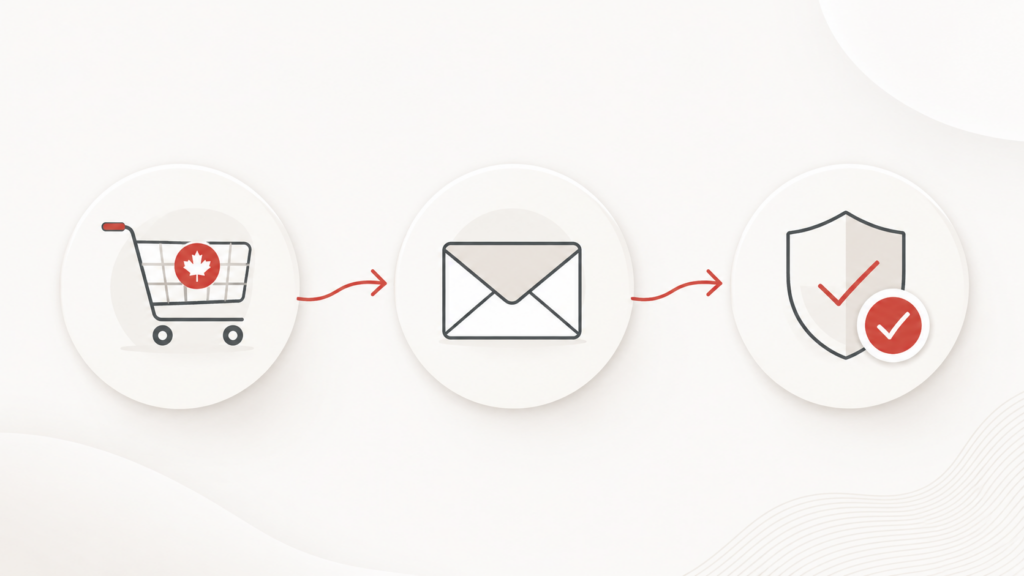
Do not open your banking app until you have completed checkout and can see the current payment instructions. Having the correct details in front of you prevents most avoidable mistakes.
| Information to Confirm | Why It Matters |
|---|---|
| Order number | Helps Native Nicotine identify and match the payment to the correct order. |
| Exact order total | An incorrect amount can require manual review or an additional transfer. |
| Current recipient | Payment details can change. Never assume an old saved recipient is still correct. |
| Message or reference | The checkout instructions may ask you to include the order number or another reference. |
| Security question and answer | These may be required when the recipient does not use Autodeposit. Enter them exactly as instructed. |
| Available transfer limit | Your financial institution may impose per-transfer, daily, or weekly limits. |
| Correct account | Make sure you are sending from the account you intend to use and that sufficient funds are available. |
Keep the checkout confirmation page or order email open while entering the transfer. Copy details directly when possible, but check for accidental spaces or formatting changes.
Interac e-Transfer is sent after checkout, so the first step is building the correct cart. Confirm the brand, profile, quantity, shipping charge, discount, and final total before placing the order.
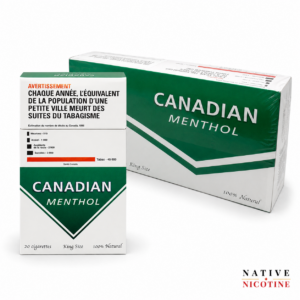
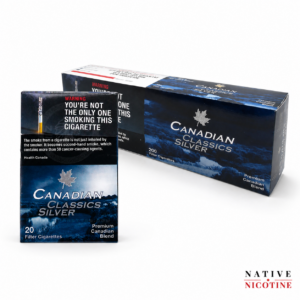
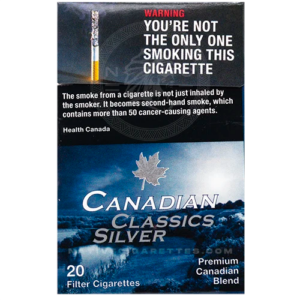

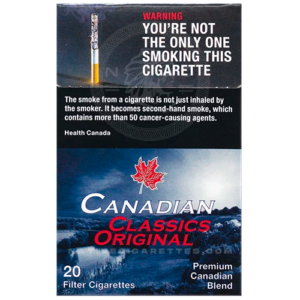
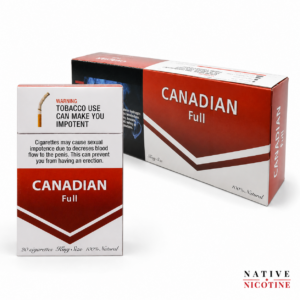
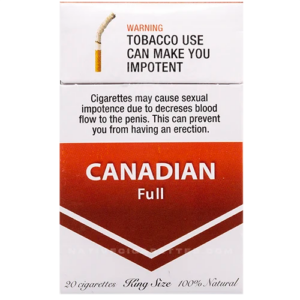
Browse all native cigarettes or read How to Buy Cigarettes Online in Canada.
Browse the shop, select the exact product variation, and add it to the cart. Pay close attention to whether the variation is one pack, several packs, one carton, or a multi-carton tier.
Before continuing, check:
Qualifying orders of $149 or more receive free shipping. Orders below the threshold use the current flat shipping rate shown at checkout.
Enter a complete Canadian shipping address, including the unit or apartment number when applicable. Use an email address that you monitor, because order and tracking updates are sent by email.
Your recipient name and address should be accurate and consistent with any identification that may be requested by the carrier. You must meet the legal smoking age that applies in your province or territory.
Submit checkout and wait for the order confirmation. Do not send a transfer based on an estimated cart total before the order is created. The final total may be affected by shipping, coupons, taxes, or quantity changes.
The payment instructions associated with the current order are the source of truth. They may be displayed on the confirmation page and may also be included in an order email.
Open the official mobile-banking app or type your financial institution’s web address yourself. Avoid accessing online banking through an unexpected email, advertisement, text message, or search result.
Log in normally and find the menu labelled something similar to:
The wording and screen layout vary by institution and can change over time.
Compare the recipient shown in online banking with the recipient in the current Native Nicotine payment instructions. Do not select an old saved recipient only because the name looks familiar.
If adding a new recipient, enter the requested name and contact information carefully. Your bank may ask you to confirm the recipient before continuing.
Send the exact final amount shown on the order. Do not round up, round down, subtract a coupon again, or remove shipping manually.
If your order total is above your e-Transfer limit, do not send several unapproved partial payments. Contact your financial institution about your limit or ask Native Nicotine support how to proceed before sending anything.
Enter the order number or requested reference in the message field when instructed. This is especially important when the amount could match another customer’s order.
Keep the message simple. Do not include banking passwords, card numbers, personal identification numbers, or unrelated private information.
If the recipient uses Autodeposit, your banking app may show that the funds will be deposited automatically and may not ask for a security question. If a security question and answer are required, enter the exact wording provided with the order.
Review the recipient name displayed by your bank before confirming. Stop and contact support when the displayed recipient appears inconsistent with the instructions.
Before selecting “Send,” compare all of the following one final time:
Confirm the transfer only when every field matches the current instructions.
After sending, save the Interac confirmation or reference number. A screenshot is optional, but the reference number is useful if your bank or Native Nicotine needs to investigate a delayed payment.
Do not publish the reference number in a public review or social-media comment.
The payment rule that prevents most problems
Place the order first, then copy the exact recipient, total, and reference from the current payment instructions. Never rely on saved details from an earlier purchase.
Interac e-Transfer is available through participating banks and credit unions. The exact menu and button names can change, so use this table as a general orientation rather than a substitute for your financial institution’s current instructions.
| Financial Institution | Common Area to Check | Important Note |
|---|---|---|
| RBC Royal Bank | Move Money or Send an Interac e-Transfer | Confirm the recipient and transfer limit before sending. |
| TD Canada Trust | Transfers or Interac e-Transfer | Review the funding account and recipient carefully. |
| Scotiabank | Move Money or Interac e-Transfer | Menu names may differ between the app and website. |
| BMO | Pay and Transfer or Interac e-Transfer | Check the amount before the final confirmation screen. |
| CIBC | Interac e-Transfer or Send Money | Use the current order reference when instructed. |
| National Bank | Transfers or Send an e-Transfer | Transfer limits depend on the account and institution. |
| Tangerine | Move Money or Email Money | Compare the saved recipient with the current checkout instructions. |
| Desjardins | Transfers or Interac e-Transfer | The interface may be shown in English or French. |
| Credit unions | Transfers, Send Money, or Interac e-Transfer | Contact the institution directly when the option is unavailable. |
Interac states that its domestic e-Transfer service is directly integrated into the mobile and online banking platforms of participating institutions. When you cannot find the feature or a transfer remains pending, contact your bank or credit union using the official number on the back of your debit card or its official website.
Autodeposit allows an Interac e-Transfer recipient to receive funds directly into a linked account after routine checks, without manually answering a security question. Your bank should identify that Autodeposit is enabled and show the registered recipient name before you send.
Review the displayed recipient name. Do not continue simply because Autodeposit makes the transaction faster.
When Autodeposit is not enabled, your bank may ask you to create a security question and answer. Follow the Native Nicotine order instructions exactly. Capitalization may not always matter, but spelling, spacing, and wording can.
Do not invent a new question or answer when the order provides one.
Use the method requested in the current order instructions. Never send sensitive banking credentials. A security answer used for the transfer is not the same thing as your banking password, PIN, or one-time login code.
Stop before sending. Compare the current checkout page and order email, then contact Native Nicotine through the official contact page. Do not use contact information from an unsolicited message that contradicts the website.
Interac e-Transfer is designed to move funds through participating financial institutions using secure banking systems. However, no payment method removes the need to verify the recipient and recognize fraud attempts.
Native Nicotine does not need:
Do not provide these details to anyone claiming they are required to match an e-Transfer.
| Warning Sign | Why It Is Concerning | What to Do |
|---|---|---|
| Unexpected recipient change | The details conflict with the checkout or order confirmation. | Do not send. Verify through the official contact page. |
| Request for banking password or PIN | A retailer does not need these credentials to receive an e-Transfer. | Stop communicating and contact your bank if credentials were disclosed. |
| Pressure to send immediately | Urgency can discourage you from reviewing the recipient and amount. | Pause and verify the order details. |
| Request for gift cards, crypto, or remote access | The payment method no longer matches the Native Nicotine checkout. | Do not proceed. |
| Link to an unfamiliar banking page | It may be a phishing website designed to collect login details. | Close it and open your bank’s official app or website directly. |
| Request to send a second full payment | The first transfer may already be deposited or pending review. | Check your banking history and contact support before sending again. |
An e-Transfer and an online order are separate records until the payment is connected to the correct purchase. Matching is easier when the amount, order reference, sender information, and transfer instructions align.
A typical payment flow is:
1. Order created
Checkout generates an order number and final total.
2. Transfer sent
The customer sends the exact total through online banking.
3. Payment received
The transfer reaches the recipient after financial-institution checks.
4. Order matched
The amount and reference are connected to the correct order.
5. Processing begins
The paid order moves into review, picking, and packing.
6. Tracking sent
Tracking is emailed after the parcel ships.
Native Nicotine does not promise that every payment will be matched instantly. Financial-institution review, incorrect details, duplicate orders, partial transfers, mismatched names, or a missing reference can require additional time.
Interac says transfers are often fast but can take longer depending on the financial institution and its checks. Review the transfer status in your bank, confirm sufficient funds, and contact your bank when the status does not change within its expected timeframe.
Possible reasons include:
Your bank controls the transfer service and can explain the specific decline. Native Nicotine cannot change a bank limit or bypass a financial-institution security review.
Do not automatically send another full payment. Contact Native Nicotine with the order number, amount sent, transfer date, and reference number. Support can advise whether a small balance, correction, or refund review is required.
Find the order confirmation and contact support before sending another transfer. If payment was already sent, provide the exact amount, sender name, date, and Interac reference number.
Check whether the transfer is still pending or has been deposited. Contact your bank immediately when you sent money to the wrong recipient. Also contact Native Nicotine through the official site, but understand that the retailer cannot reverse a transfer sent elsewhere.
Do not send any further payment. Collect both confirmation numbers and contact support with the order number and amounts. Duplicate payments require review before any correction can be made.
Review your bank’s transaction history and contact the bank for the exact status. Then contact Native Nicotine before re-sending, because the order may need updated payment instructions or availability confirmation.
Make sure each transfer contains the correct order reference and amount. Do not combine multiple order totals into one transfer unless the current instructions or support explicitly tell you to do so.
| Problem | Contact Your Bank? | Contact Native Nicotine? |
|---|---|---|
| Transfer limit or decline | Yes | Only if the order needs to be held or changed |
| Missing payment instructions | No | Yes |
| Wrong order amount | Sometimes | Yes |
| Wrong recipient | Immediately | Yes |
| Transfer pending | Yes, if prolonged | Yes, when order matching is also delayed |
| Duplicate transfer | Check both statuses | Yes |
| Order total or product change | No | Before paying |
| Banking credentials disclosed | Immediately | Notify support if it involved a fake Native Nicotine message |
Sending the transfer does not mean the parcel has already shipped. The order moves through several stages:
Delivery estimates begin after payment is confirmed and the order is processed. Native Nicotine’s current general estimates are:
| Destination | Typical Delivery Estimate |
|---|---|
| British Columbia, Alberta, Saskatchewan, and Manitoba | 2 to 4 business days |
| Ontario and Quebec | 4 to 6 business days |
| Atlantic Canada | 6 to 9 business days |
| Territories and many remote northern addresses | 7 to 14 business days |
These are estimates, not guaranteed arrival dates. Weekends, statutory holidays, severe weather, postal code, carrier volume, proof-of-age requirements, remote routing, and pickup notices can add time.
Read How Long Does Cigarette Delivery Take in Canada? and the current Shipping Policy for complete details.
Orders ship in plain, unmarked packaging without obvious cigarette product names or Native Nicotine promotional branding on the outside. Normal carrier labels, destination details, tracking barcodes, neutral return information, and proof-of-age or pickup instructions may still appear.
Tracking is emailed after shipment. If you have paid but have not received tracking, the order may still be waiting for payment matching, processing, packing, or carrier pickup.
Review the Privacy Policy for information about how order and payment-related data are used.
Qualifying orders of $149 or more currently receive free shipping. Orders under $149 use the flat shipping rate shown at checkout.
Before adding extra products, compare:
Do not let the free-shipping threshold push you into buying a large quantity of an unfamiliar product. A lower-commitment pack or comparison bundle may be the better first purchase.
Place the order first, then follow the current Interac e-Transfer instructions associated with the order. Send the exact total through your bank or credit union, include the requested order reference, and save the confirmation number.
Native Nicotine currently uses Interac e-Transfer for online orders. Review the live checkout for the current payment method before placing an order.
Interac e-Transfer uses participating financial institutions and secure payment networks. Customers should still verify the recipient, use their bank’s official app or website, protect login credentials, and stop when payment instructions appear inconsistent.
No. Native Nicotine does not need your online-banking username, password, card PIN, or one-time login code. Complete the transfer inside your own financial institution’s system.
Interac e-Transfer is available through participating Canadian banks and credit unions. Interac states that its domestic service is offered through more than 250 financial institutions. Confirm availability and limits with your institution.
Interac says transfers are often fast but can take up to approximately 30 minutes depending on the bank or credit union, and additional review can sometimes take longer. Payment matching and order processing are separate steps.
The transfer may still be pending, waiting for deposit, missing an order reference, sent for the wrong amount, or waiting to be matched. Check your bank status and contact Native Nicotine with the order number and transfer confirmation when needed.
Do not automatically send a second full payment. Contact Native Nicotine with the order number, amount sent, date, and confirmation number so the payment can be reviewed.
Contact your bank or credit union immediately and check whether the transfer is pending or deposited. Also contact Native Nicotine through the official site, but a retailer cannot reverse money sent to an unrelated recipient.
Not always. A recipient using Autodeposit may receive the funds without a security question. When your bank requests a question and answer, use the exact information provided for the current order.
Tracking is emailed after the payment is confirmed, the order is processed and packed, and the parcel ships. It is not normally sent immediately after the transfer.
Do not split a payment unless Native Nicotine support has approved it. First check your transfer limit with your financial institution, then contact support before sending partial payments.
Paying for cigarettes online with Interac e-Transfer is a straightforward process when you follow the current order instructions. Complete checkout first, verify the recipient, send the exact final total, add the requested order reference, and keep the confirmation number.
The most important safety rule is simple: Native Nicotine does not need your online-banking password, debit PIN, or remote access to your device. Complete payment through your financial institution’s official app or website and stop whenever the recipient or instructions do not match the order.
Ready to place an order?
Compare real product photographs, live prices, packs, cartons, and bundles. Qualifying orders over $149 receive free shipping, and tracking is emailed after shipment.
Drop your name and email and we'll send the code now.
No spam. Unsubscribe anytime. Legal age only.